Label Artwork Resolution: Check the Image at Its Printed Size
A logo sent through a messaging app can look sharp on a phone and still be the wrong source for a printed bottle label. The useful question is how much image information remains at the size the printer will actually use. Ask the designer to identify the source type, the placed dimensions and any low-resolution objects inside the final print file before approving it.
A vector logo, a product photograph and a screenshot need different treatment. Do not reject a usable photograph because it is not vector, or accept a pixelated logo simply because someone saved it as a PDF. Start with the object that will be printed.
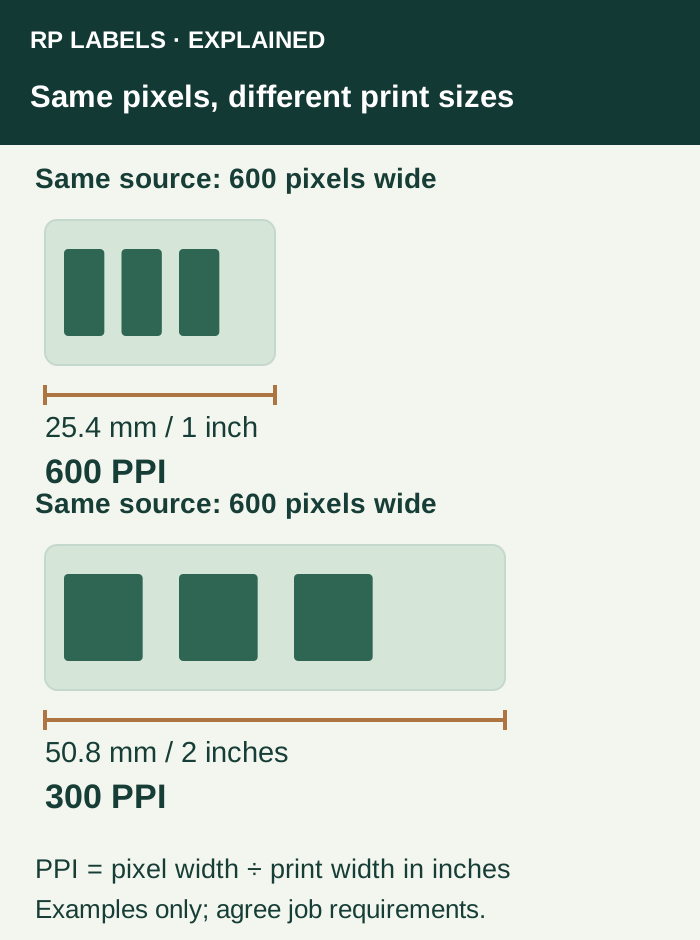
Calculate resolution from the placed size
For a raster image, divide its pixel width by its printed width in inches. Convert millimeters to inches by dividing by 25.4. Check the height too if the artwork has been stretched unevenly. This gives the image's effective pixels per inch at that placement.
For example, a 600-pixel-wide image placed 25.4 mm wide uses 600 pixels per inch. At 50.8 mm wide it uses 300. At 76.2 mm wide it uses 200. These are arithmetic examples, not a statement that any one of those versions will pass this label job.
Adobe's explanation of printed image resolution distinguishes pixel dimensions from the density used at a physical print size. Changing a resolution field while retaining the same pixels does not add original image detail. Ask the converter what effective resolution and file preparation it needs for this image and production route.
Choose the right source for the element
For a wordmark or geometric brand symbol, request the authorized vector master from the brand owner or designer. Vector paths can scale without the same pixel-grid limitation. A vector file can still contain a placed raster picture, however. The file extension alone does not identify every object inside it.
For a photograph or textured illustration, request the original high-quality image rather than a compressed chat preview or a screenshot of a presentation. Judge its intended crop at the actual size. Enlarging a small crop can make its effective resolution much lower than that of the full photograph.
Adobe's raster and vector comparison explains the underlying distinction. It does not establish a universal label-printing minimum. Fine logo edges, photographic detail and soft background texture can expose different weaknesses, even when their pixel counts match.
Use a worked handoff instead of “high resolution”
Consider a fictional supplement label containing a brand mark and a berry photograph. The designer proposes a vector wordmark 30 mm wide and a 1,200-pixel-wide photograph cropped to a 600-pixel region, placed 50.8 mm wide. The cropped photo has 300 effective pixels per inch across its width. The wordmark's path geometry does not need that raster calculation.
The buyer should send the converter the identified artwork revision, the crop, the placement and the original asset references. The converter can then assess the actual objects against its process. An email saying “the file is 300 DPI” hides which part was measured and whether the crop was included.
- Brand owner: identifies the approved logo master and grants the designer appropriate access.
- Designer: records each important raster object's pixels, crop and final placed size, and exports the requested production file.
- Converter: checks the supplied file in its prepress workflow and names any objects that need replacement or adjustment.
- Buyer: resolves replacement assets and approves the returned revision against the intended package appearance.
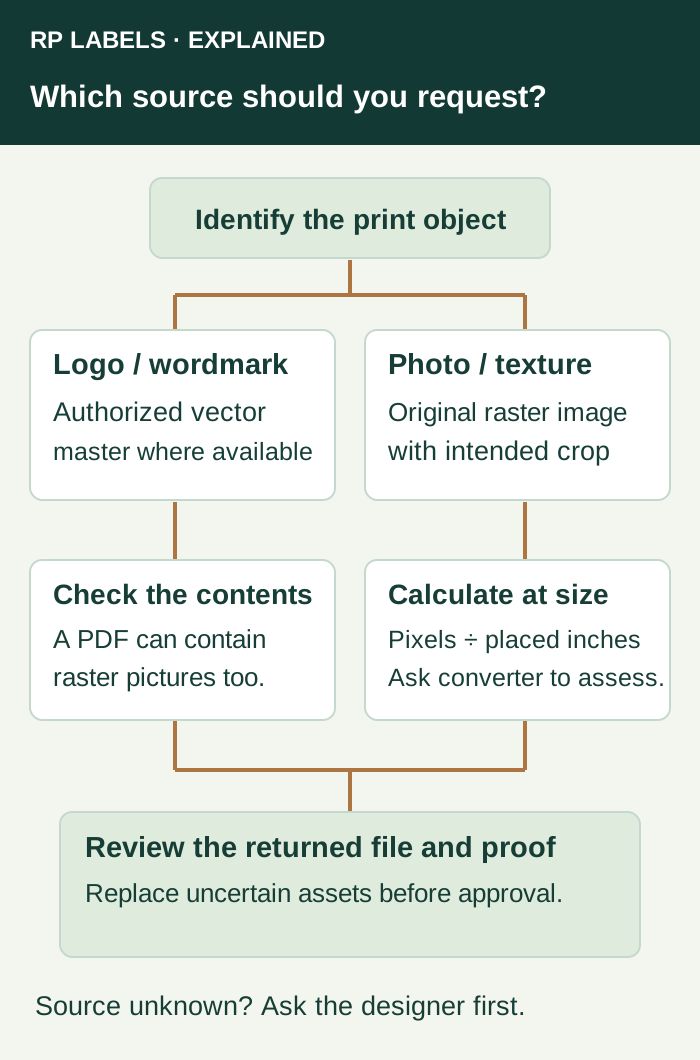
What to do when the original file is unavailable
If the image is optional decoration, reducing its printed size, changing the crop or removing it may preserve the approved design's purpose. Compare the revised composition on the actual label outline. Enlarging another element to fill the space can create a new crowding problem.
If the asset is the essential brand mark, ask the authorized designer to recover or recreate an approved source. Automated tracing or image enlargement may produce a candidate, but it does not prove that letterforms, proportions or trademark details match. Have the brand owner review that replacement before treating it as the master.
A supplied PDF can be useful when the printer accepts it. It can also package a low-resolution screenshot. Likewise, a larger pixel count produced by resampling is not evidence that the original detail was recovered. Keep the original and proposed replacement identified so the proof reviewer knows what changed.
Keep resolution separate from the other release checks
Adequate image detail does not approve small text, color, foil lines, a white-ink mask or the dieline. The actual-size readability review asks whether the reader can find the information. The font handoff guide deals with rendering and editable text. Those decisions still matter after the pictures have passed preflight.
If the only supplied artwork is a flattened, low-detail screenshot containing all the copy, pause release and return it to the designer. Sharpening the whole screenshot cannot establish the correct editable text, cut path and production layers. Obtain a usable source and compare the new proof with the approved wording.
Send RP the intended placement, not just a file
For supplement labels, small vial labels or holographic labels, include the finished label dimensions, artwork revision, source files you are authorized to share, quantities per design and any image whose quality is uncertain. Prepare an inquiry for RP Labels asking which source objects or export settings need attention for the proposed job. Attach the files through your chosen email or WhatsApp conversation after reviewing the brief.